Quick answer:
- Bystanders behind your subject, on a Windows PC: AI Video Redaction Software blurs every head and keeps the people you pick visible
- Only one person to hide: leave that one person blurred and switch everyone else on in the same People list
- A short clip with one or two faces: a mask with motion tracking in a video editor, placed on each face by hand
- Online: upload-based face blur tools suit short clips, with length caps and watermarks on trial exports
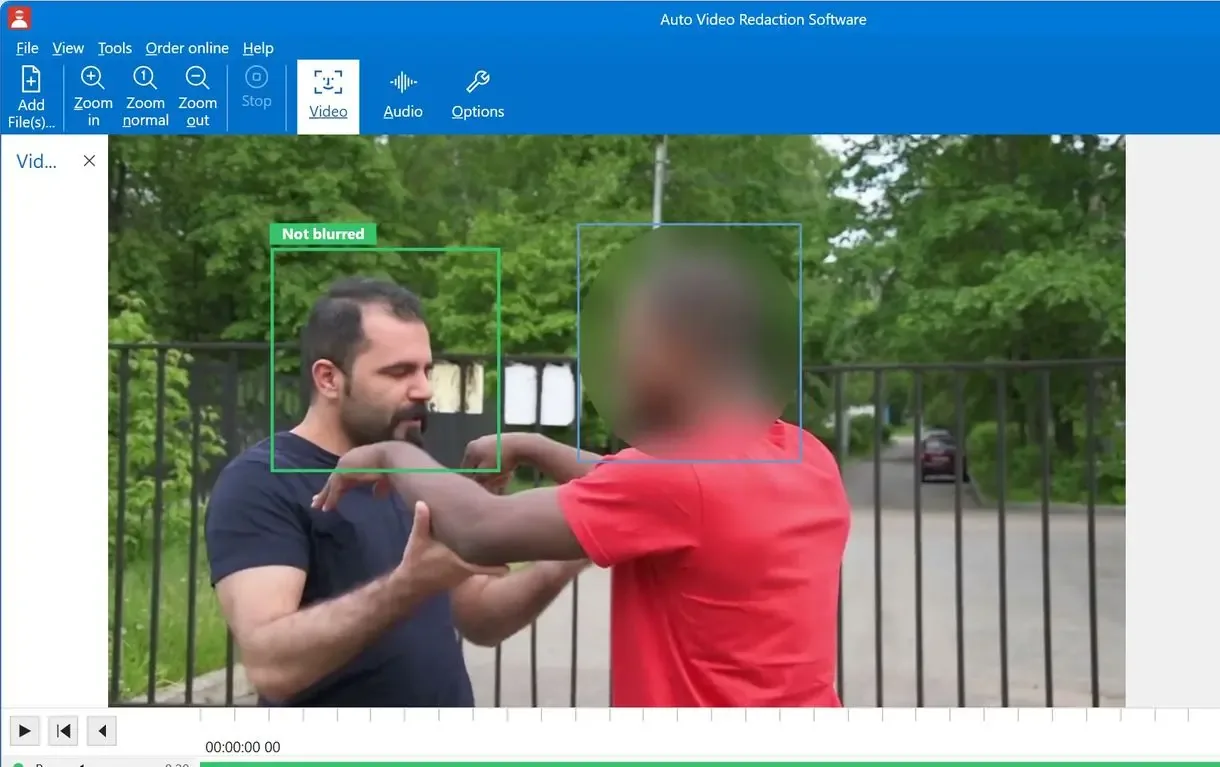
To blur background faces in video, blur every head in the clip, then switch your subject back on. Here, background means the people behind your subject. Softening the scenery is a separate edit, covered further down.
In this guide
- Blur bystanders and keep your subject visible on Windows
- Add the clip, switch on your subject, review, export
- Hide one person and leave the rest visible
- Mask and track faces in a regular video editor
- Compare online face blur tools with local processing
What you need
- A Windows PC
- AI Video Redaction Software for the keep-one workflow
- The source video in a common format such as MP4
- Time to watch the result once before you publish it
Keep your subject sharp and blur everyone behind them
AI Video Redaction Software scans the video on your PC, finds every head and builds a People list. Switch your subject on in that list, or click their face in the preview, and every other head stays blurred. You pick the person and confirm uncertain segments; the program handles the other frames.
For a school surveillance clip with a hundred students and one or two who must stay visible, a mask approach means a hundred masks and tracks. With a People list, you switch on each person who should remain visible.
When people leave the shot and return, the program links them to their earlier entry by face if it sees that face sharp and from the front. If the face is seen from behind or hidden by a mask, merge the entries manually in the same list. The original file stays untouched. The result is a new MP4 with H.264 video and AAC audio.
Masks in a video editor
- One mask and one track per face you hide
- Re-track after someone walks in front
- Cut the clip each time a person enters or leaves
People list in the app
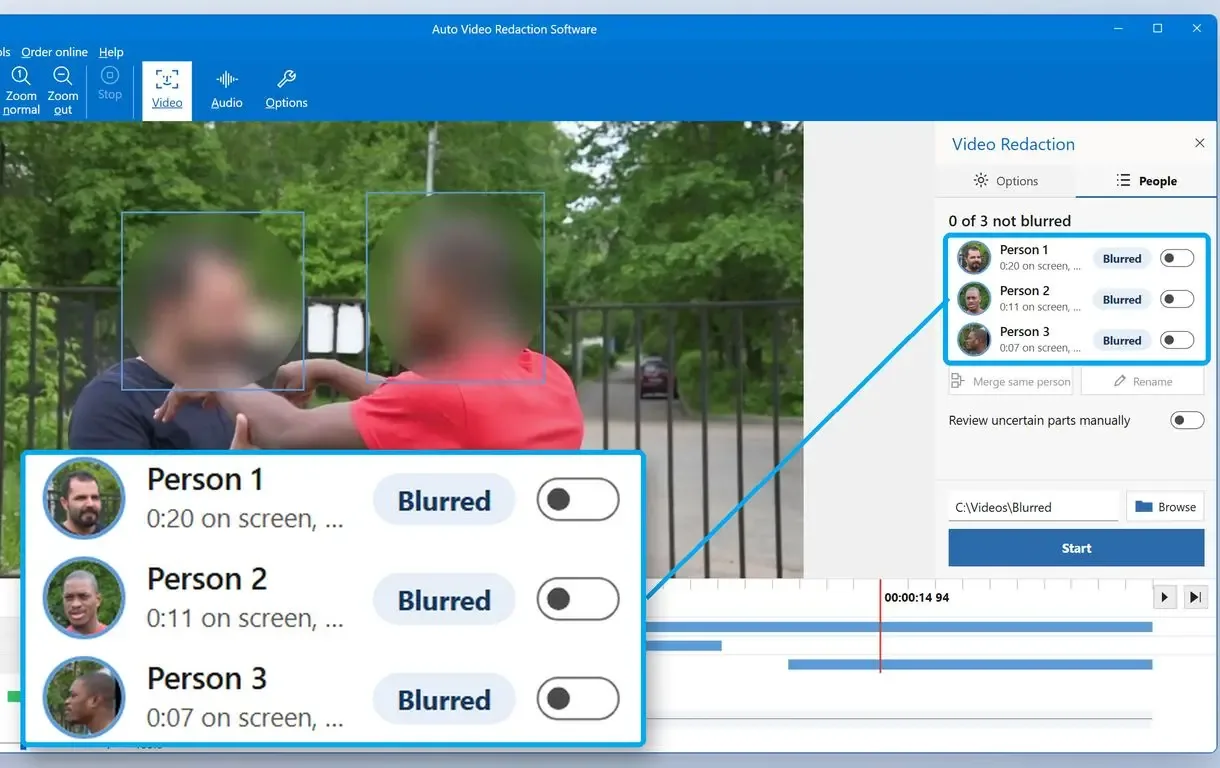
- Every detected head is blurred after the scan
- Switch on the one or two people who stay visible
- Confirm unsure stretches with one click each
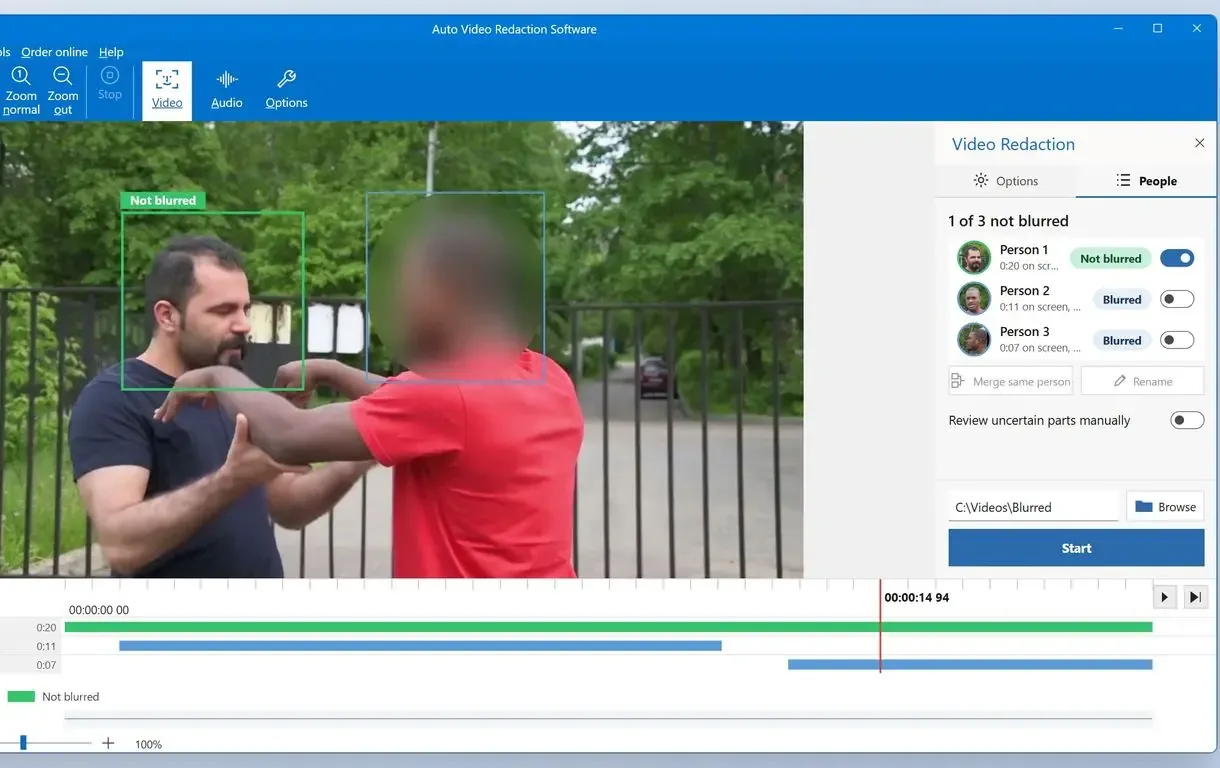
How to blur background faces in a video on Windows
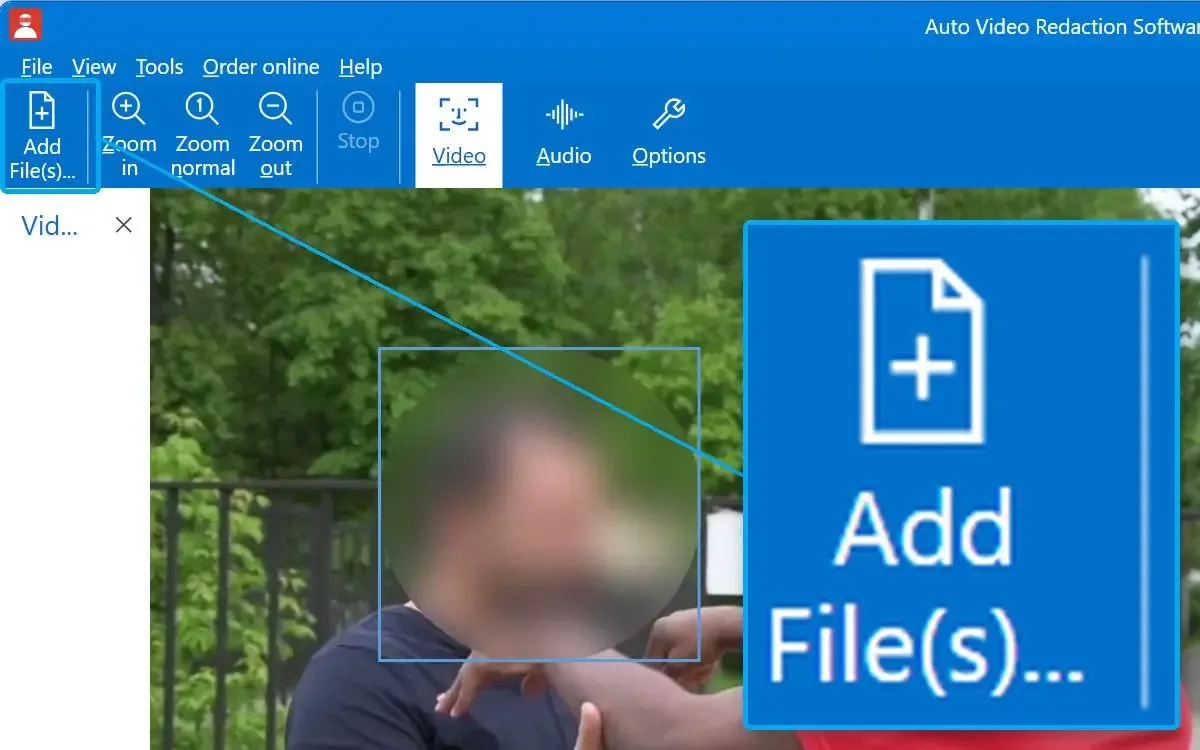
Add your video to the program
Click Add File(s) on the start screen and pick the clip. MP4 and MOV open directly, as do MKV and AVI; HEVC and AV1 video inside them is supported too.
Let the analysis finish and open the People tab
The scan starts when the file opens and lists each person with a thumbnail and their time on screen. On a 720p file with CPU only, it runs at about a third of playback speed.
Switch on the person who stays visible
Flip the toggle next to your subject in the People list, or click their face in the preview. The preview matches the final export frame for frame.
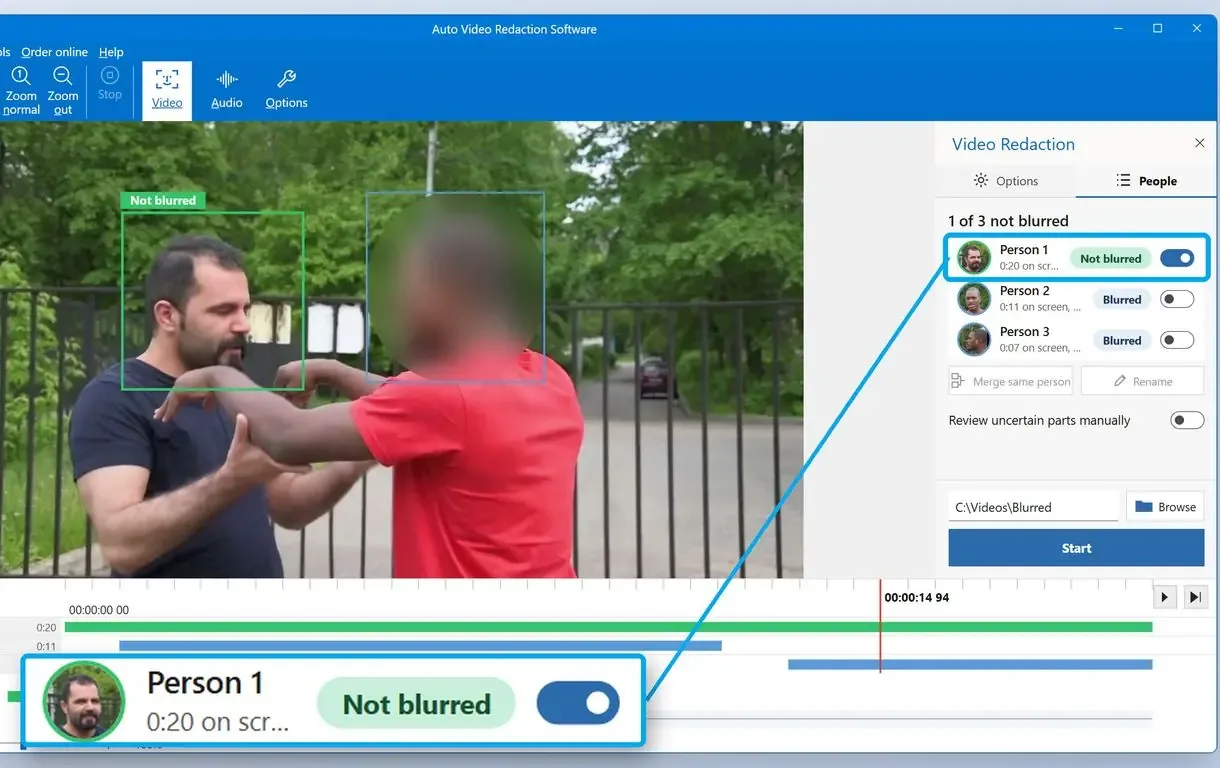
Merge a person who left and came back
If your subject appears as two entries, select both and merge them. Rename the entry so you can find it later. Automatic merging only happens when the face was clear and frontal.
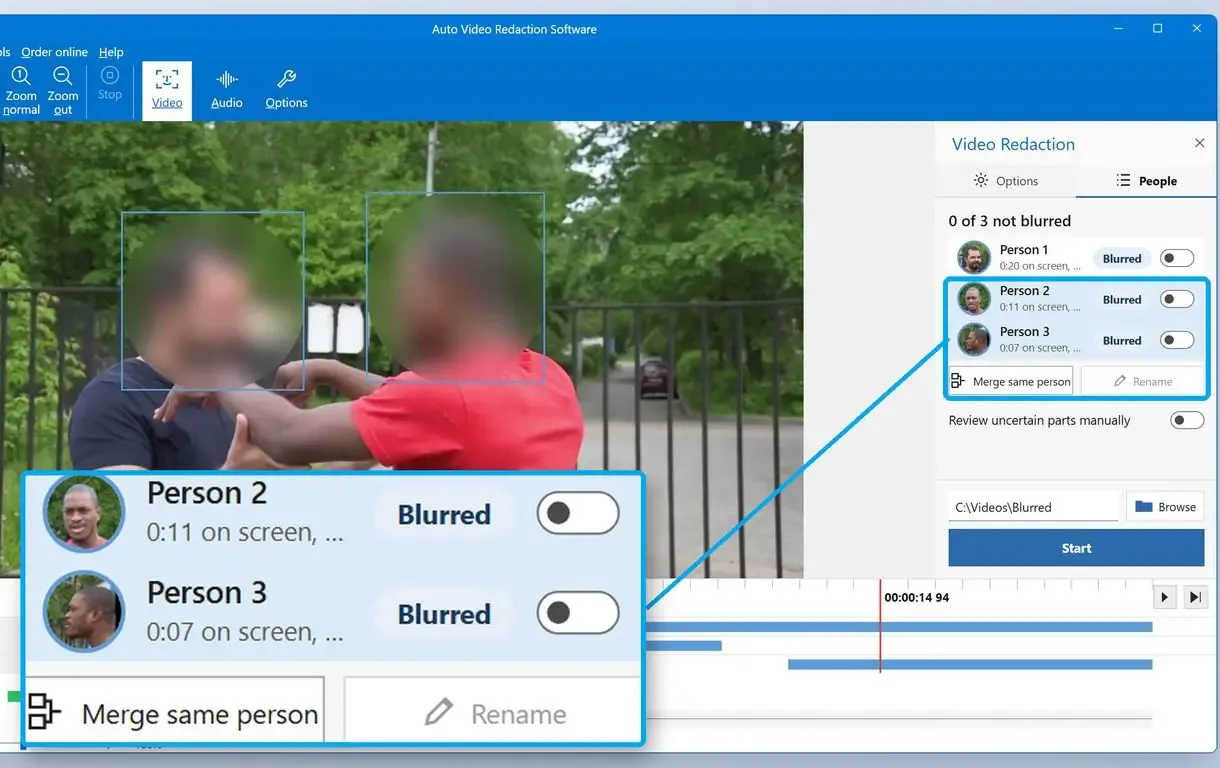
Review hatched segments and cover misses with Custom area
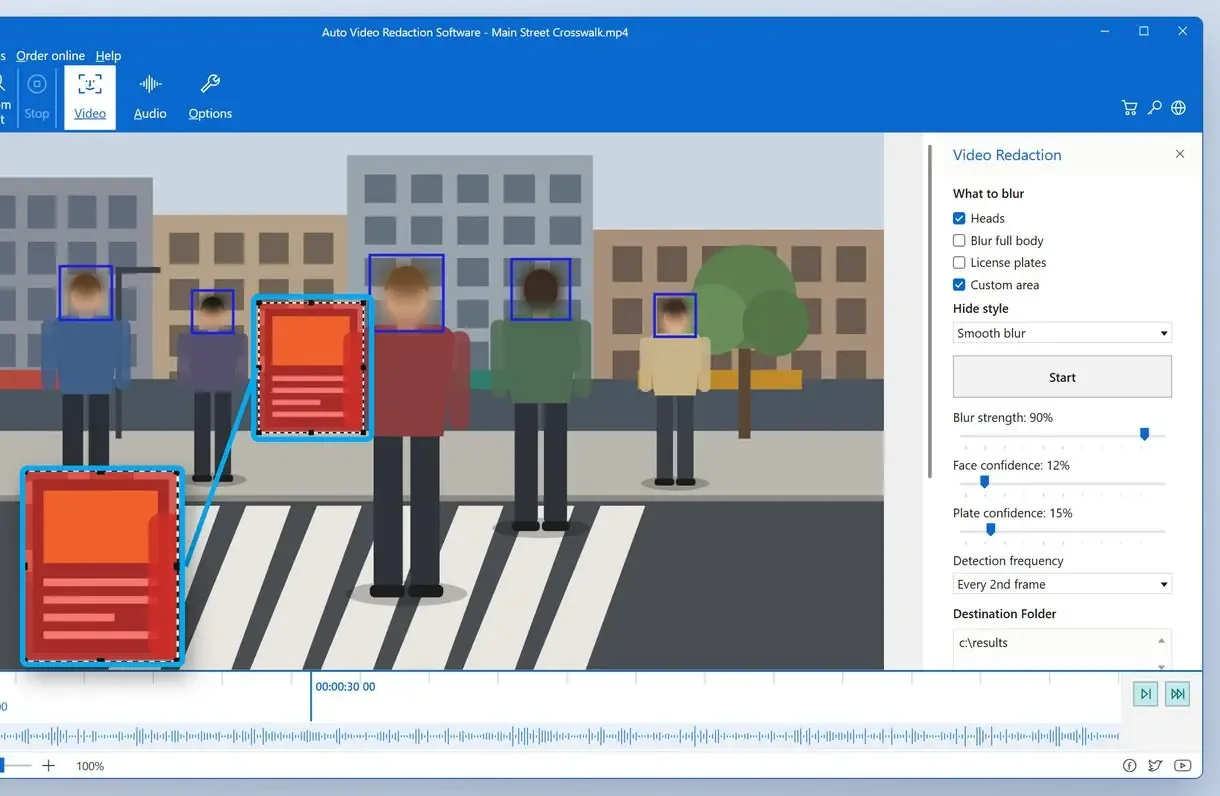
Hatched stretches on the timeline mark frames where the program was unsure it was your subject. Click a segment to open it if it is them. If a face slipped past the detector, draw a Custom area over it.
Pick a hide style and click Start
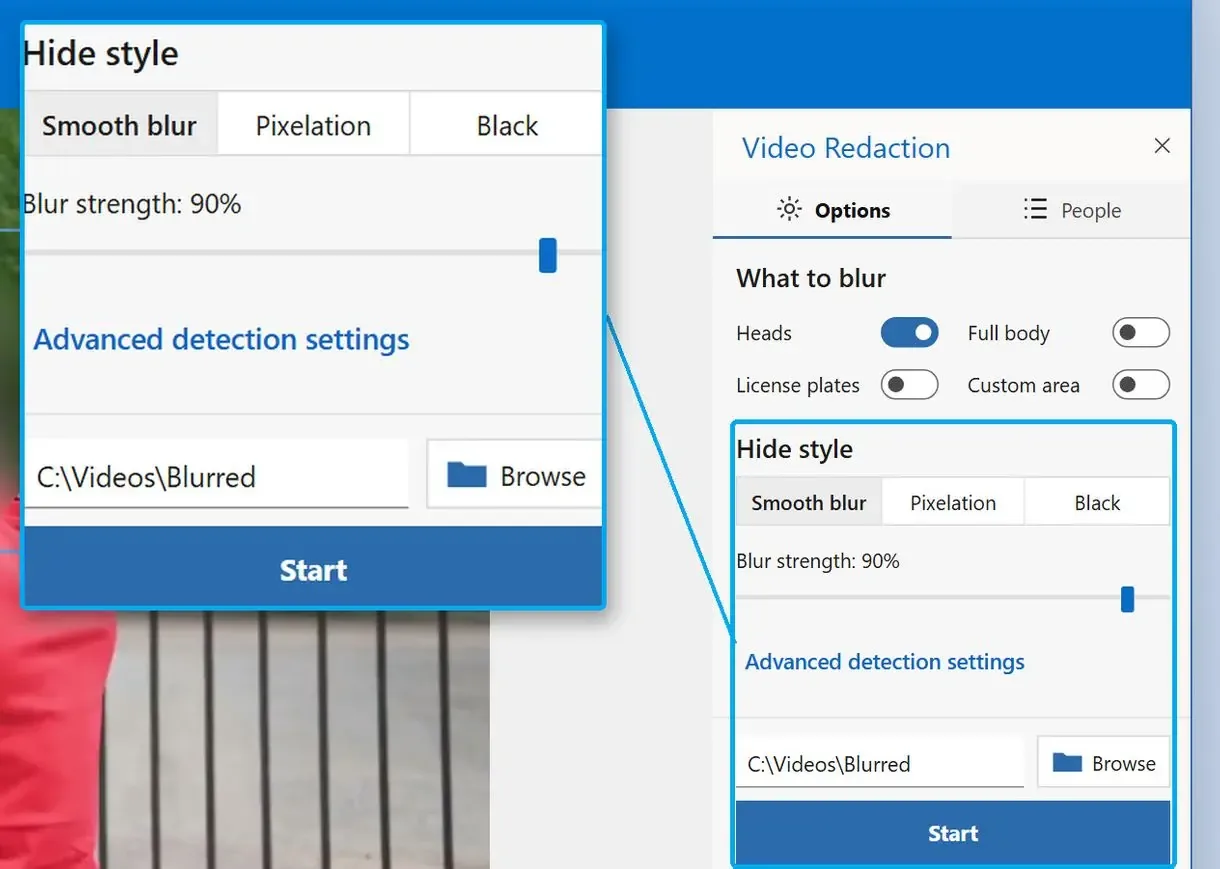
Set Hide style to Smooth blur, Pixelation or Black square, adjust Blur strength, choose the destination folder and click Start.
What counts as background when you blur faces in a video?
For privacy, background faces are bystanders: passers-by behind a vlogger, other students on a school camera, or shoppers in a store recording. Blurring scenery, as portrait mode softens a wall, is a different edit made with a different kind of tool.
Phone apps and some online editors offer background blur for looks. Facetune calls its version Defocus; it keeps no list of people and does not allow you to mark who stays visible. A redaction tool works per head, so you can blur background faces in video while leaving a shop shelf as it was.
Use per-face blur to hide who was there. For shallower-looking scenery in a talking-head shot, an editor's background blur effect is quicker. For stills, see our guide on how to blur a face in a photo.
How to blur someone's face in a video and leave the rest visible
To blur someone's face in a video and keep the others clear, run the People list in reverse: switch on everyone who may stay visible and leave only the person to hide blurred. This suits a clip with a handful of people. In a general video editor, put one tracked mask on that face.
Typical cases include a coworker who did not agree to appear or a witness in an incident recording. Dedicated redaction suites call this inverse mode: click the person to hide and the tracker follows them. In Movavi Video Editor, aim the tracking frame at that person and let motion tracking carry the blur.
Check by eye the frames where someone passes between the camera and your target.
Why does the blur jump to another person's face?
Motion trackers in video editors follow a patch of pixels, not a person's identity. When someone walks in front of the masked face, the tracker can jump to the newcomer and carry the blur along for the rest of the clip.
The DaVinci Resolve Club guide to face and background blur says neither Resolve tracker is a face detector and recommends one tracked window per moving face. The fix is manual: split the clip where faces overlap, resize the mask, then re-track after the other person passes. One editor user reported about two hours of work to cover three minutes of an 11-minute video.
A face-based tool ties the blur to each detected head, so a crossing does not hand it to a stranger. Crossings can still make identity uncertain. In the app, that uncertainty appears as a hatched segment on your subject's timeline; their face stays blurred there until you confirm it.
How do you check for faces the detector missed?
Watch the result once at normal speed, then step frame by frame through crowds and dark shots. Platforms acknowledge gaps too: detection can fail on odd angles and poor lighting.
YouTube's announcement of its face blurring feature called it emerging technology with those weak spots. The open-source blurfaces script readme gives the same advice: pair it with manual editing before you publish.
On our 16-clip test set, detection removed most of the clicking, but a review pass was still needed. Check overhead camera angles and 4K frames with tiny faces carefully. A Custom area rectangle or free-form shape covers faces the detector misses.
Do not publish straight after export. One uncovered frame can be enough to identify someone, so scrub through crossings and dark scenes first.
Can you blur faces in video with a regular video editor?
Yes. Use a mask and motion tracking on each face. Premiere Pro, DaVinci Resolve and Movavi track a blur shape; CapCut's blur mask is placed by hand and often keyframed. The work grows with the crowd.
Add a blur or mosaic effect, draw an ellipse over the face, run the tracker and fix drift by hand. In CapCut, a hand-placed mask drifts on fast movement. Its Face Mosaic effect finds faces on its own, but can drop out when a head turns. To keep one person sharp, Movavi describes a reverse trick: a clear ellipse around the subject with blur outside it, which also blurs scenery.
If you choose mosaic, make the cells large. Pixelization can be partly reversed in moving video because the blocks shift from frame to frame; a solid fill avoids that.
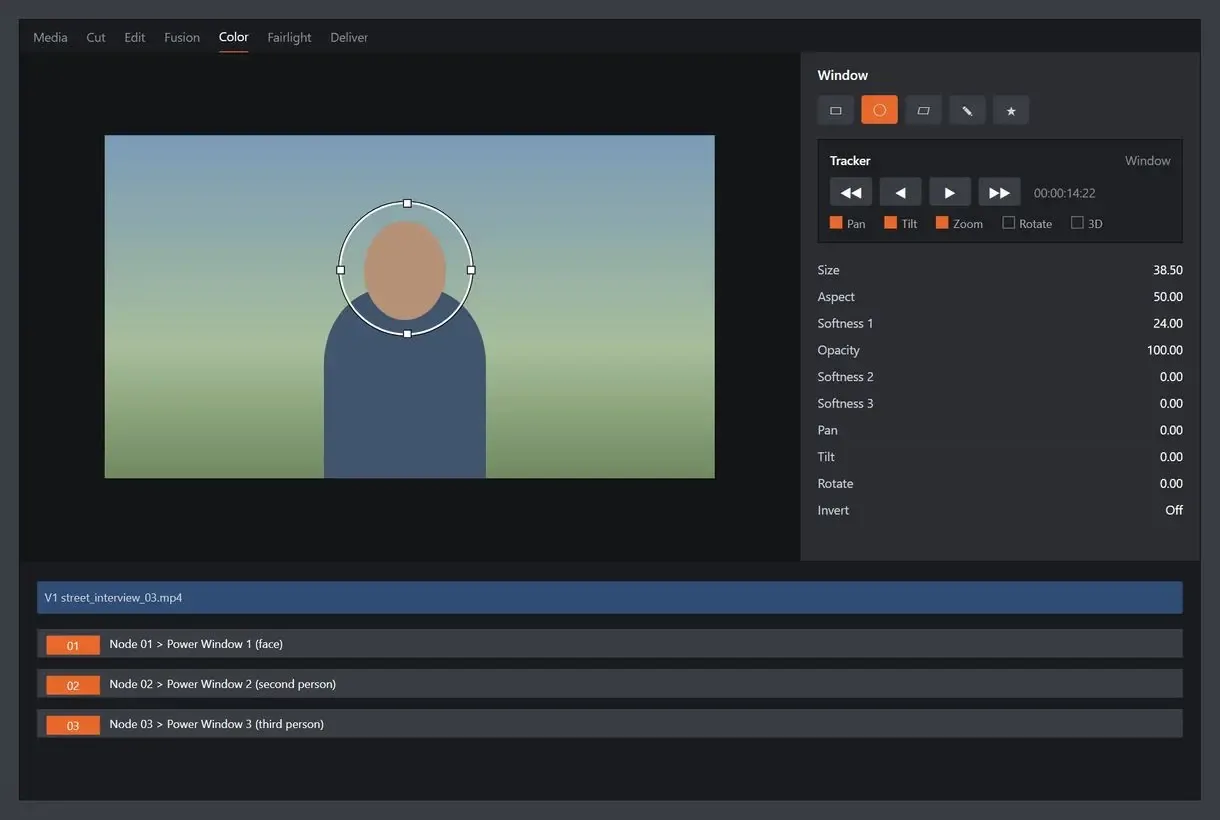
An editor makes sense for a 30-second clip with one or two faces. For a 40-minute recording where people come and go, plan to cut and re-track whenever someone enters or leaves. For hiding text or a logo, see our video censor tool guide.
Should you blur faces in video software on your PC or online?
Online face blur tools suit short clips you are allowed to upload. Their trial exports are 10 to 15 seconds on two services we checked, and one adds a watermark. Footage full of other people's faces, such as CCTV or a classroom recording, is safer processed on your own machine.
Uploading a recording sends a copy of every face in it to a third party. For a store camera clip in a dispute or a school recording, people in the frame never agreed to that copy. Some online services cap uploads; one limit is 5 minutes and 3 GB.
The program runs the scan locally. Its cache keeps face boxes and person numbers along with the names and choices you set. No face images are stored on disk.
Which method fits your footage?
Count the faces you need to hide and consider who may see the file. Few faces in a short public clip suit an editor or online tool. Long recordings with many bystanders, or footage you cannot upload, call for a local redaction tool with a People list.
A vlog or street clip under a minute. One or two passers-by are quick to mask with tracking in your editor. Our page on how to blur face in video on Windows covers the all-faces case.
A school or store camera recording. The People list suits dozens of people when one or two should stay visible. Switch on the visible students or staff.
One person to hide in a long family or event video. Reverse the People list, or use a single tracked mask in an editor if nobody crosses in front of that person.
Footage released on request. For FOIA or data access requests, process the file locally and keep the redaction log. The program writes a .redaction.html and a .csv report next to the result, with SHA-256 hashes of the source and output and a case number field.
Sources
- Gaussian blur (Wikipedia) - how a smooth blur filter spreads pixel values across a face
- blurfaces on GitHub - open-source script with all, target and exclude face modes and a manual review note
FAQ
How can I blur the background of a video?
Decide what background means. To hide bystanders, use per-face blur and keep your subject visible. To soften scenery, apply a background blur effect in an editor or phone app.
How to blur out faces on a video?
To blur out faces in a video, find or mask each face, then track it through the clip. A redaction tool detects every head on its own; in an editor, draw and track one mask per face and fix drift by hand.
Can CapCut blur faces in video?
Yes. The Face Mosaic body effect covers detected faces and lets you tap one to leave it clear, but it can glitch when a head turns. For a proper blur, place a mask, add keyframes and correct it when the person moves fast. Several people mean several masks.
Is it possible to unblur a video?
A strong blur burned into the exported file cannot be reliably reversed. Weak settings or small mosaic cells can still leave a face recognizable, so use a heavy blur or large cells and keep the original private.
What is the best blur video editor for PC?
For one or two faces, any editor with motion tracking does the job. For many bystanders or long recordings, a redaction tool that lists people saves per-face masking.
How can I blur the license plate in a video?
Use a plate detector or a tracked mask. AI Video Redaction Software has a License plates mode for close, readable plates; small plates on passing cars need a check. Our guide on how to blur license plates in video covers dashcam and bodycam footage.
How long does it take to blur faces in a long video?
Analysis of a 720p file without a graphics card runs at about a third of playback speed, so an hour of footage takes around three hours. Fast mode is near real time with more misses. With DirectML on a GPU, one test machine ran 2.4 to 4.8 times faster.
Can I try the program before buying?
Yes. The trial runs 10 days with every feature, adds no watermark and saves up to 3 minutes of each video. Clips shorter than 3 minutes are saved at half their length.
Blur faces and plates on your next release - offline, on your own PC.