Quick answer:
- Long recordings or many people on Windows: AI Video Redaction Software finds heads, blurs them and lets you keep chosen people visible
- A video already on your YouTube channel: YouTube Studio > Editor > Blur > Face blur
- One or two faces in a short clip: track a mask with keyframes in a video editor such as DaVinci Resolve or Premiere Pro
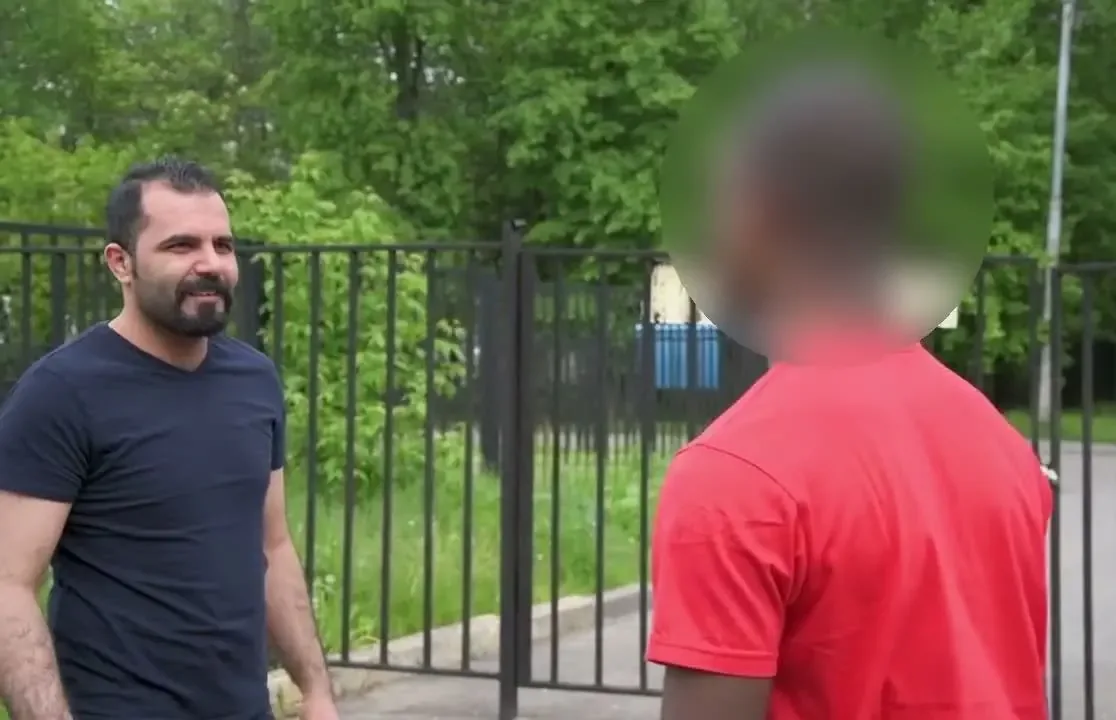
If you are wondering how to blur faces in video, a single face in a 30-second clip is a short job in almost any editor. Hand-tracking ten people across an hour of footage becomes impractical. One tutorial names the classic case. You filmed in public, and maybe there's minors in the shot you would rather not show.
In this guide
- Long recordings and many people: automatic head detection on Windows
- Keep one person visible and blur everyone else
- Video already on YouTube: Studio face blur
- One or two faces: mask tracking in an editor
What you need
- A Windows PC with AI Video Redaction Software, or a YouTube channel for Studio's face blur
- The original video file, in the highest resolution you have
- Enough time to watch the finished video once from start to end
How to blur faces in long videos automatically on Windows
For long footage or many people, AI Video Redaction Software replaces hand-tracking: it scans the video, blurs every head it finds and follows each person as they move.
One editor with hundreds of hours of interviews estimated five hours of manual blur work per hour of footage. That makes 20 hours of recordings roughly 100 hours of masking.
The program finds heads with a YOLOX detector and checks faces with separate face models. Blue frames show what will be hidden; the preview matches the export. Processing stays on your PC. The cache holds boxes, person numbers and names, with no face images saved to disk.
Without a GPU, our test machine needed about three hours to process one hour of 720p video. Fast mode runs close to real time but misses more heads. Keep it for drafts.
Tracking by hand in an editor
- One mask and one track for every person
- Fix the mask at each head turn and crossing
- Hours of keyframes on long footage
Automatic head detection
- Heads found in one analysis pass
- Blur follows people while the camera moves
- Review the export and patch rare misses with Custom area
Review dense crowds, overhead camera angles and people in masks or hoods more slowly: detection struggles with these.
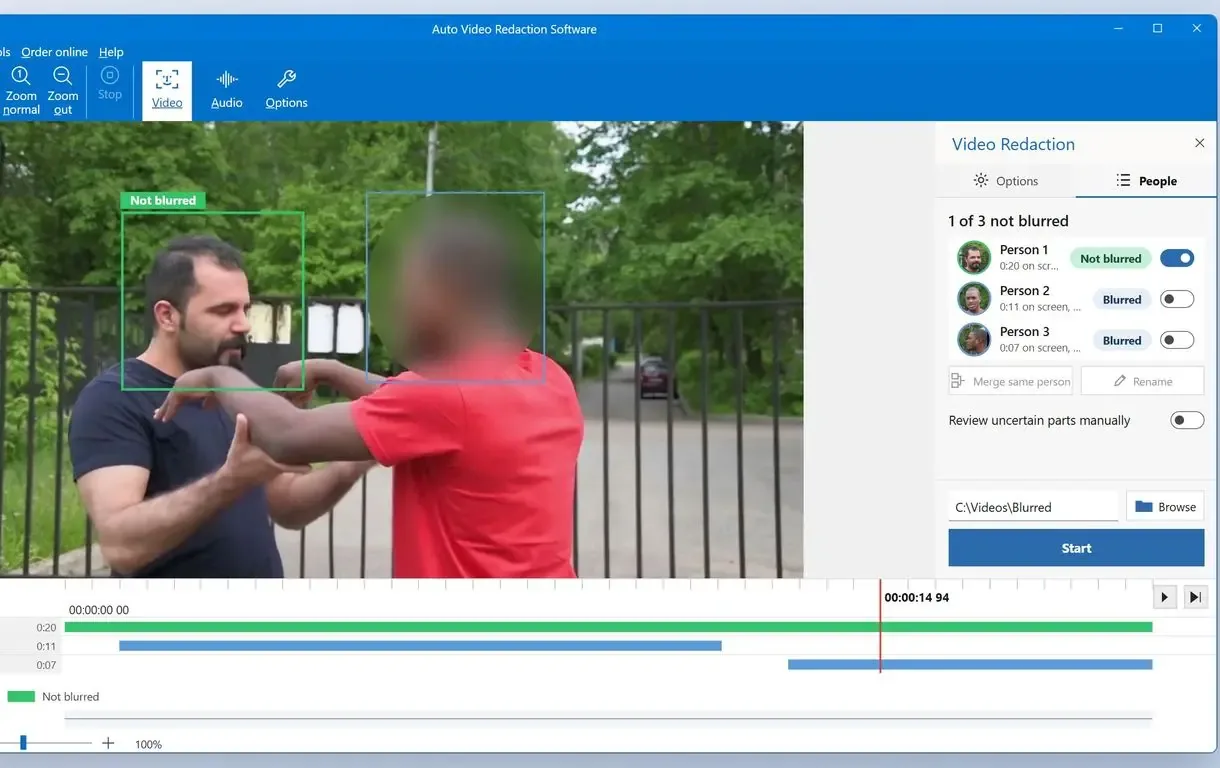
How to blur faces in a video with automatic detection, step by step
Add your video to the app
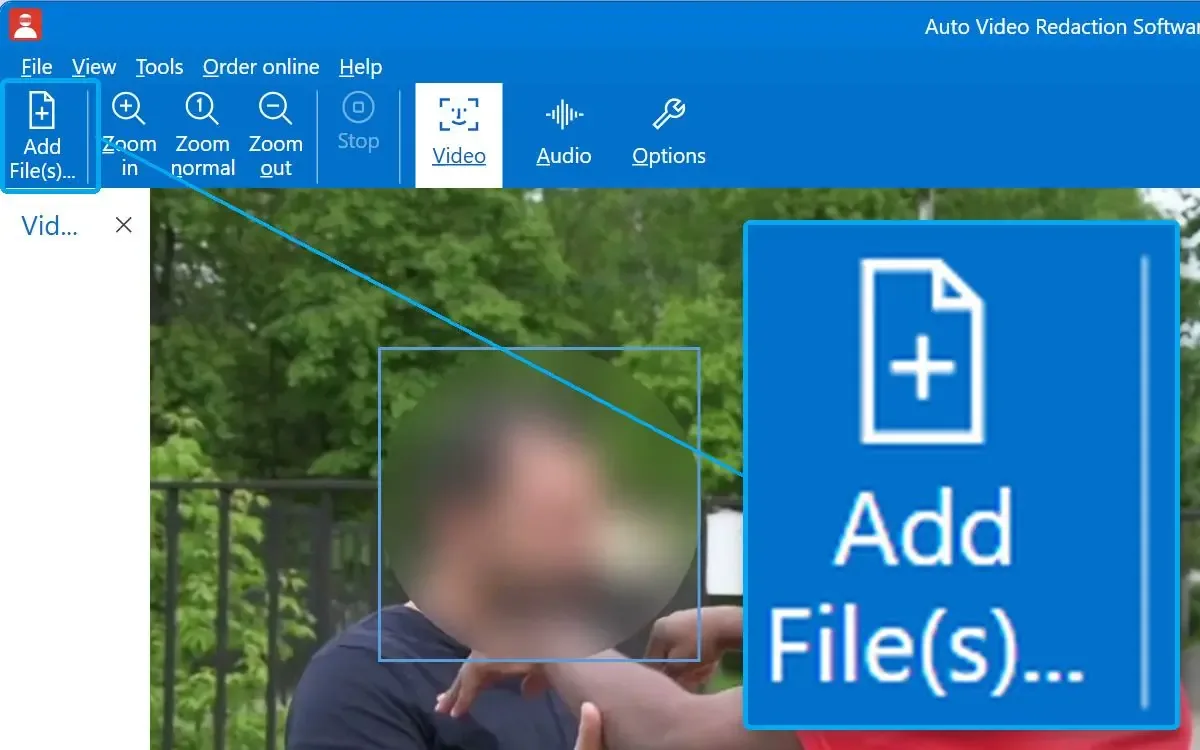
Install the program from Microsoft Store, start it and click Add File(s). MP4, MOV, MKV, AVI and WMV files open directly. Person analysis starts automatically.
Let the analysis build the list of people
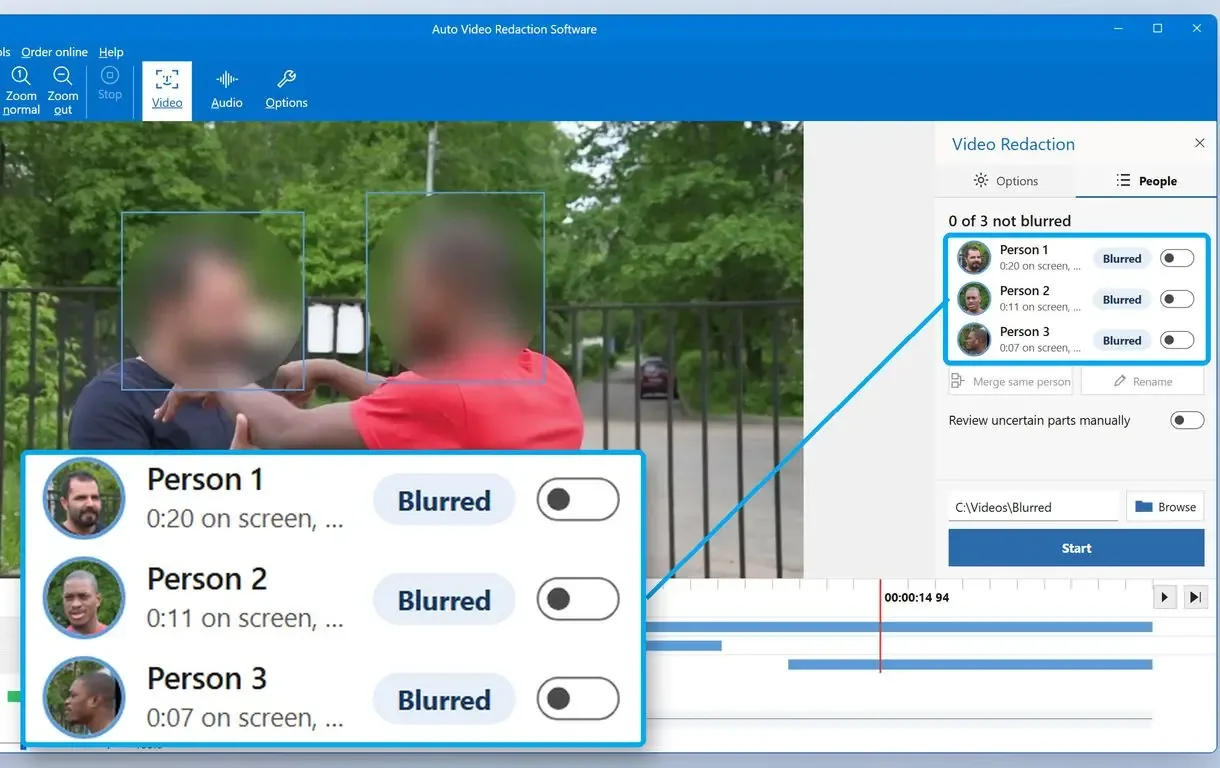
Leave long scans running and check back later. The People tab lists everyone found, with a thumbnail and time on screen.
Choose what to hide and how
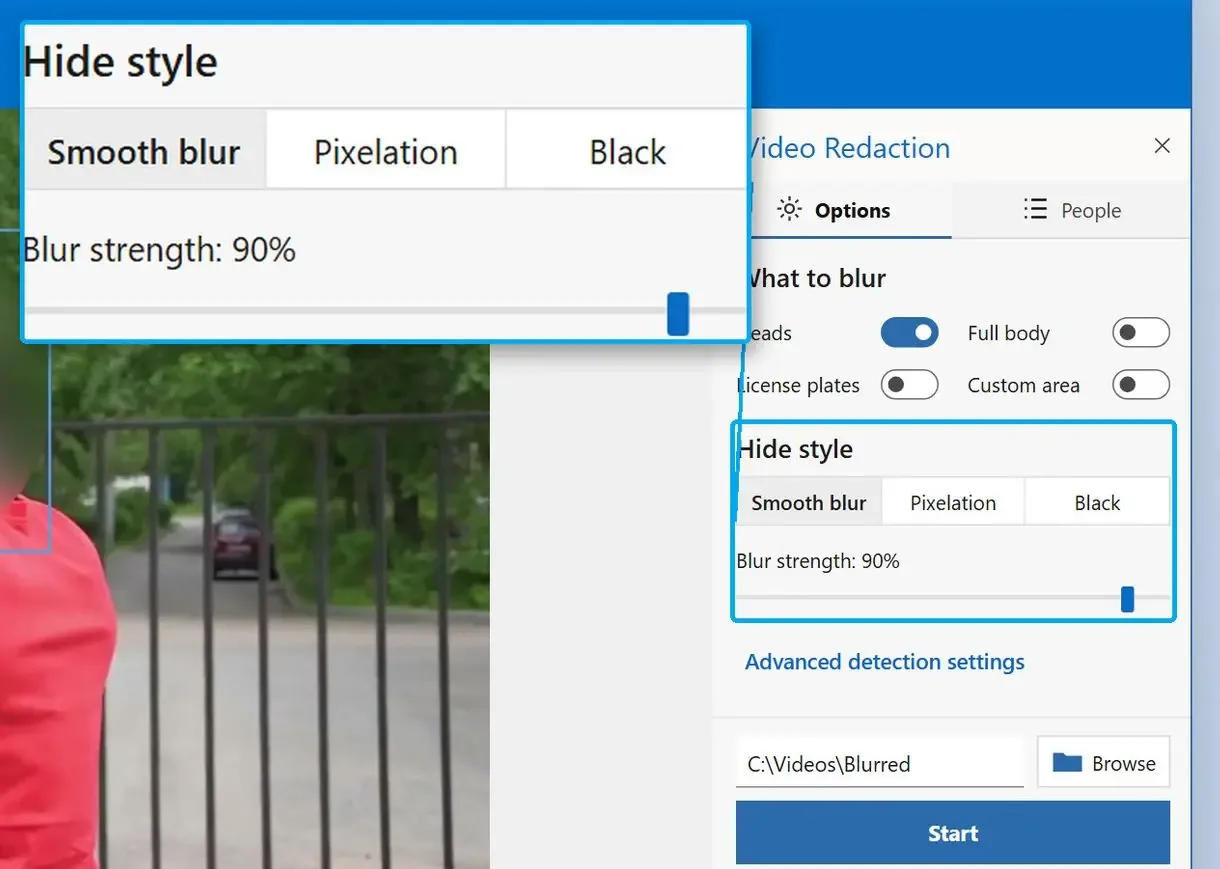
Keep Heads on. Add License plates for passing cars. Pick a Hide style and raise Blur strength until faces are unreadable.
Mark the people who stay visible
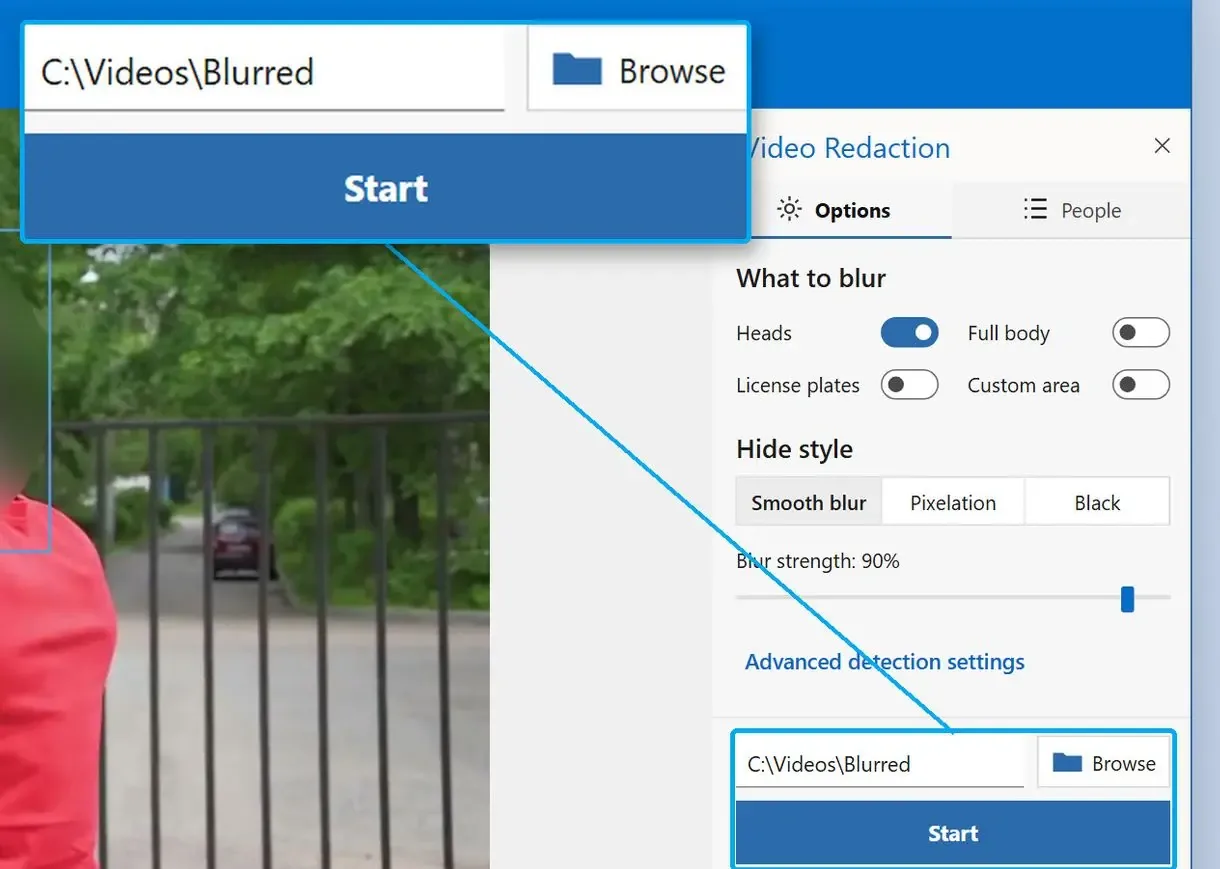
Click a face in the frame or flip that person's switch in the People list to leave them unblurred. Flip it back if you change your mind. Skip this step to hide everyone.
Export and check the video
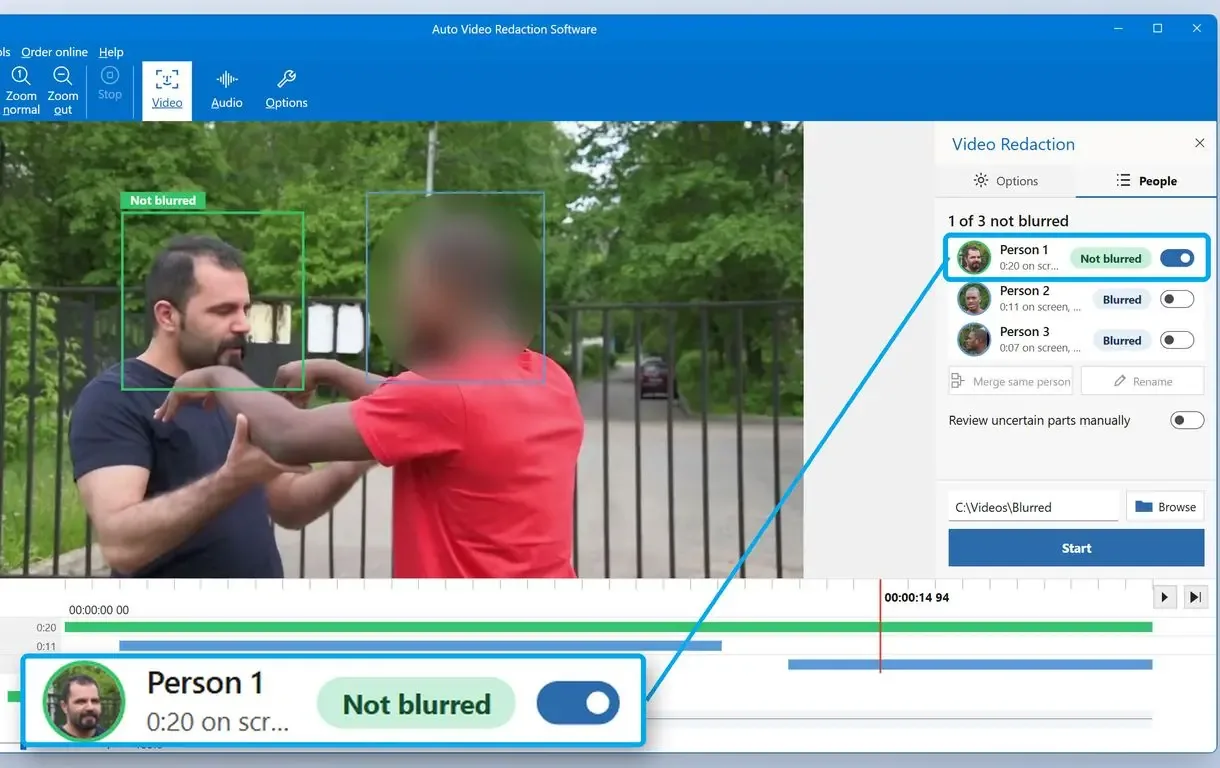
Set the Destination Folder and click Start. When the MP4 is written, press play and review your video at full screen before sharing.
How to blur out faces in a video but keep one person visible
Click the person's face or flip their switch in the People list. They stay sharp wherever the program is sure who they are. Check and open the doubtful stretches yourself; these stay blurred until you confirm them.
In an interview, you may want the speaker visible while bystanders pass behind them. On our test set of 16 clips, a kept person stayed visible on 38.5% of their frames on average without extra clicks, from 23% on the hardest clip to 100% on the easiest. Other stretches appear hatched on the timeline. Check that each stretch shows your subject, then click to open it.
When someone leaves and returns, the program joins both appearances if it sees their face clearly from the front. Backs of heads, small faces and masked faces need a manual merge in the People list.
Some editor plug-ins detect faces and let you choose which gets blurred. To blur background faces in video in a plain editor, you need a separate track for every person except your subject.
How to blur your face in video for free: YouTube Studio and its limits
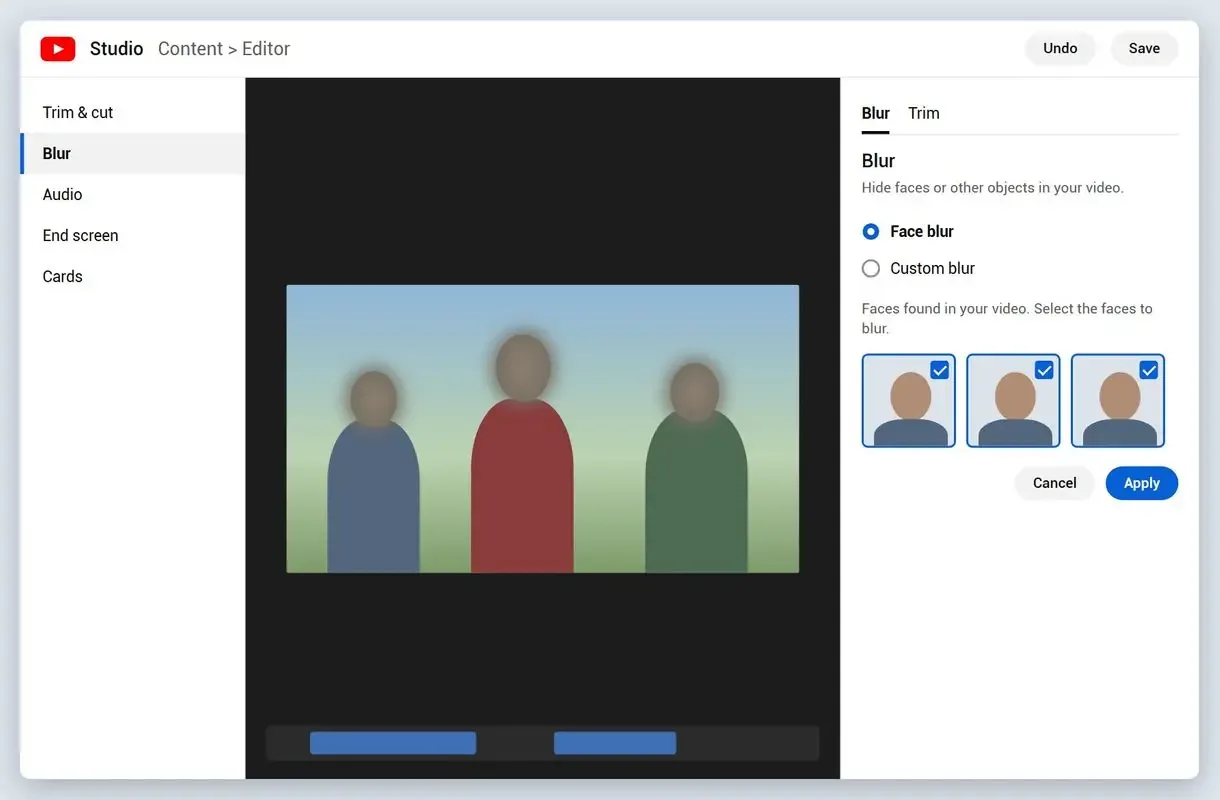
For videos uploaded to your YouTube channel, YouTube Studio's Face blur scans the upload, lists detected faces and blurs your selections at no cost. For videos outside YouTube, use another route.
Follow YouTube Help's guide to blurring videos: open Content in YouTube Studio, pick the video, choose Editor, then Blur and Face blur. On a long upload, this may take quite some time. One creator testing a short clip said it did not take long at all.
In one creator's test, the scan offered a drum set among the things it thinks are faces, so look at every thumbnail before you select. The blur moves with the person as they walk. Drag its edges to resize it.
Another creator pointed at the light grey gaps on the blur track. Those are stretches where the scan found no face, in his case because the shot cut away to a phone. A grey gap during a shot with people in it means a missed face. Use Custom blur for objects such as a logo; let it follow the object or keep it still.
Upload as private or unlisted, apply and check the blur, and only then make the video public.
Avoid Studio for client footage, evidence or anything you are not allowed to upload.
How to blur someone's face in a video with mask tracking in an editor
To blur a moving face in video, apply blur, draw a mask around the face and use the editor's tracker to follow it. Premiere Pro and DaVinci Resolve track masks; CapCut needs keyframes placed by hand. Use this route for one or two faces in a short clip.
People asking editing software for an auto-blur button describe manual masks as slow and unreliable in fast-paced or crowded scenes.
The tracking routine in most editors:
- Apply a blur or mosaic effect to the clip, or a copy on the track above
- Draw an ellipse mask over the face to cover just a small piece of the frame
- Run the tracker forward from a clear frame, then backward from that frame
- Scrub through; move any drifting mask back and set a keyframe
- Render and watch the export, because a preview can hide drift
Premiere Pro has mask tracking buttons, described in Adobe's masking and tracking guide. In DaVinci Resolve, use a Power Window and the tracker on the Color page. Each extra person needs another window or node. In CapCut, the blur stays put until you add keyframes. For a stationary face, skip tracking and fix it to a blur position.
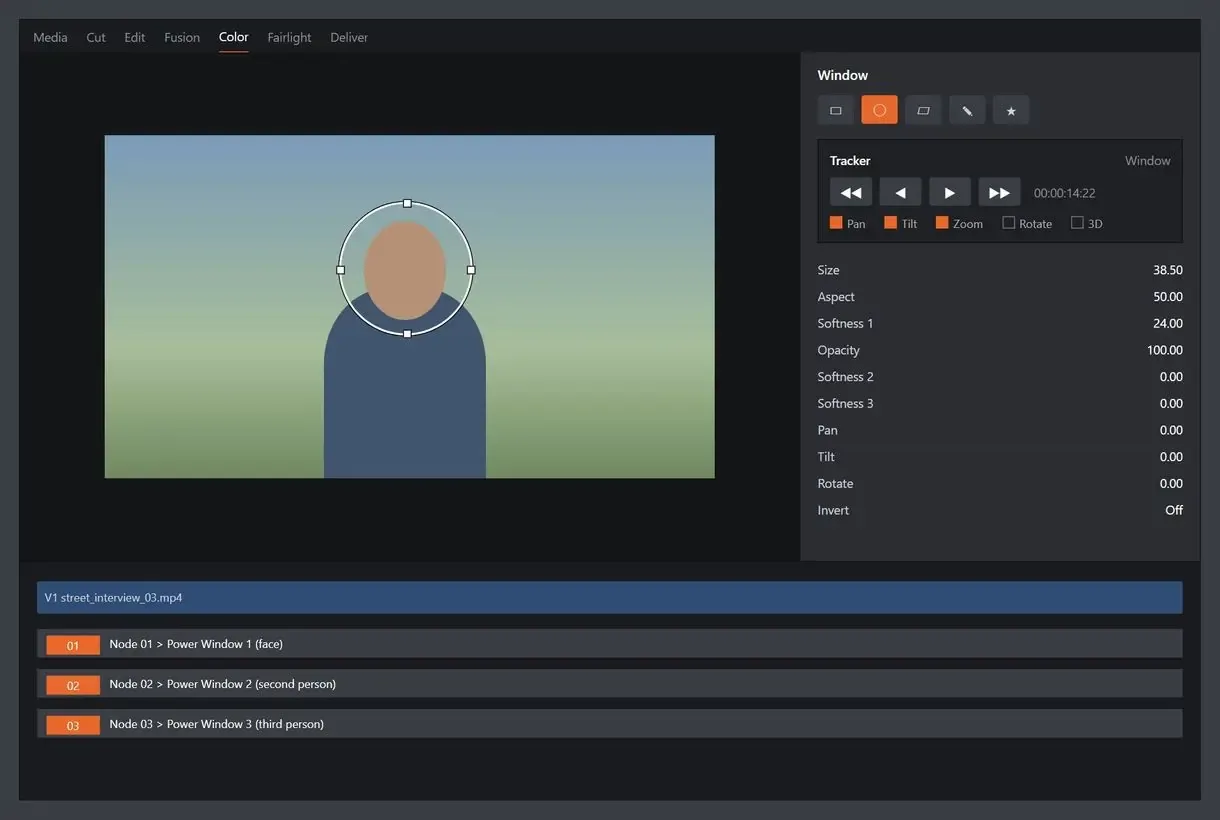
Five faces mean five masks and five tracker runs. Each mask can drift independently.
Why does the blur slip off a face, and how do you stop it?
A tracker follows pixels without knowing whose face they belong to. It can lose a face during a sideways turn or when someone blocks it. Two people crossing is the worst moment. Enlarge the mask, track in both directions and stop at each crossing to prevent most leaks.
Even a vendor selling automatic blurring admits tracking breaks when someone turns sideways or another person walks in front. A finished track can slide onto the wrong face or stick to the obstruction.
One editing forum advises making your blur mask larger, then larger again. A tight mask exposes an ear or cheek for a few frames when the head turns faster than the tracker.
In most editors, drag the mask edges to make it larger or smaller. Leave a margin around the hair and jaw. For long projects that slow the editor down, split the timeline and blur only segments with people.
The program looks for heads in each analysed frame, so a head turn does not drag the blur away. We changed the tracker for three edge cases: a head cut off by the frame edge is blurred to that edge; an entering head is covered back to its first frame; and a head emerging from behind another person is covered for 12 frames before detection.
Blur, pixelate or black box: which hides a face for good?
A solid black box replaces the face pixels and is the only irreversible style. Strong pixelation with large blocks comes close. Light blur keeps the most detail and offers the weakest protection for someone who must stay anonymous.
Gaussian blur averages neighbouring pixels, giving closer ones more weight. Its soft, natural appearance makes it editors' default. At a low radius the shape of the eyes and jaw still shows, and someone who knows the person may recognise them.
Pixelization replaces image areas with flat blocks of one colour. Small blocks preserve a rough facial outline; large blocks reduce it to a handful of squares.
Sharpening tools and AI upscalers guess at missing detail. After light blur, the guess can be close enough to identify a real person.
The program offers Smooth blur, Pixelation and Black, with a Blur strength slider for the first two. For witnesses, minors or anyone at risk, pick Black or pixelate a face in video with strong pixelation.
How do you check a blurred video for missed faces before publishing?
Watch the export at full screen from start to end. Pause at head turns, crossings, frame edges and reflections. No detector or tracker finds every face, so review the whole video whichever method you used.
A phone-editing tutorial advises playing the clip through to make sure the blurring is all properly done before export. On long footage, slow down at:
- Head turns and profiles, where trackers lose faces and detectors see less
- Two people crossing, or one walking in front of another
- Frame edges, where a face enters or leaves
- Mirrors, windows and screens showing a second copy of a face
- Small distant faces and dark or noisy shots, where low resolution defeats detection
A name badge or car plate can identify someone too. One YouTuber uses Studio's blur as a safety net for things you forgot to blur in editing, such as a license plate or a phone number. In the redaction app, switch on License plates for cars, as covered in how to blur license plates in video. Draw a Custom area over badges, logos and screens that no detector looks for.
After export, the program saves an HTML and CSV redaction log with SHA-256 hashes of the source and result. It records what was hidden in which file for preparing FOIA or DSAR requests.
Vendor pages promise faces found in minutes; editors on forums report hours of fixes in crowded footage. Allow for those hours when planning your day.
Which method fits your video?
Choose how to blur faces in video by face count, length and whether the file may leave your PC. Use AI face blur in video for many people or long footage that must stay local, Studio for videos already on YouTube, and an editor with mask tracking for one or two faces in a short clip.
| Method | Best for | Work per extra face | Watch out for |
|---|---|---|---|
| Automatic head detection on Windows (AI Video Redaction Software) | Long recordings with many people | None, except confirming the people you keep visible | Crowds, overhead angles and masks; review the export |
| YouTube Studio Face blur | Videos already on your channel | Tick the face in the list | Upload required; objects listed as faces |
| Mask tracking in an editor | One or two faces, clips under a few minutes | A new mask and a new track | Drift at turns and crossings; hours on long footage |
| Online face blur services | Short clips you are allowed to upload | Usually none | Private footage goes to someone else's server |
- Already on YouTube, and allowed to stay there? Use Studio.
- One or two faces in a clip of a few minutes? Use an editor with tracking.
- Many people, hours of footage or rules against uploading? Run automatic detection.
- Keeping one person visible? Use the People list or track everyone else individually in an editor.
Wait until the cut is final to blur faces in video automatically. Masking before editing can waste hours on frames left out of the export.
Can you blur faces on a Mac, iPhone or Android?
On a Mac, iMovie has no face blur or mask tracking; use YouTube Studio or an editor with tracking. On phones, CapCut blurs faces with a mask and manually placed keyframes.
One phone tutorial nudges the mask, adds a keyframe, moves forward and repeats throughout the whole clip. That works for 20 seconds of video; longer clips are slow. Our redaction app runs on Windows, so on a Mac or a phone the routes above are the practical ones.
Sources
- EDPB Guidelines 3/2019 on video devices - how European regulators treat people recorded on video as personal data
- OpenCV Zoo: YuNet face detection model - the open face detector family used for face checks
FAQ
Is it possible to unblur a video?
You cannot recover the original face. AI sharpeners guess at lost detail.
Can iMovie blur faces?
iMovie has no face detection or mask tracking for following a moving face.
What is Gaussian blur?
It blends neighbouring pixels. Raise the strength until the eyes and mouth are unreadable.
Can I blur faces in a video for free?
YouTube Studio's Face blur costs nothing for videos on your channel.
How do I blur multiple faces in a video?
Choose detected faces in Studio or use the program's default of blurring every head.
How do I automatically blur faces in a video on a Windows PC?
Open the file in AI Video Redaction Software, let analysis finish, choose a hide style and click Start. A GPU speeds up analysis: our RTX 3060 test machine ran about 1.9 to 3.8 times faster than the CPU.
How long does manual face tracking take for an hour of video?
One interview editor estimated about five hours. Crowded or fast scenes take longer because turns and crossings need fixes.
Does the trial add a watermark, and how much video does it save?
The trial exports without a watermark. It saves the first 3 minutes of videos lasting 4 minutes or longer and half of shorter clips, with no limit on file count.
Blur faces and plates on your next release - offline, on your own PC.